How to Ship Canary Releases for Microfrontends Without Losing Your Mind
Canary releases for MFEs are complex. Learn how they work, why DIY is painful, and how to implement them safely—step by step.

TL;DR: Canary releases let you test new microfrontend versions on a slice of your traffic before going full rollout. Most teams build custom tooling for this. You don't have to.
The Problem With Shipping Microfrontend Updates
You've just merged a feature to your microfrontend. It's tested locally, it passed CI. Now what?
In monolithic architectures, you'd just deploy and move on. But with microfrontends, you're running multiple independently-deployed remotes feeding into a host application. Each one can fail independently. And unlike a full-app rollout, you can't easily A/B test a new MFE version before pushing it live to everyone.
So most teams end up building their own solution:
- Custom feature flags that toggle versions per user (adds complexity to your MFE code)
- Manual traffic splitting logic (now you're maintaining deployment state)
- Sticky session routing (sessions need to stick to the same MFE version, otherwise users jump between old and new)
- Monitoring and rollback procedures (when things go wrong at 2 AM, you need a fast way out)
It's operational debt masquerading as a deployment strategy.
What Is a Canary Release, Anyway?
A canary release is a progressive rollout pattern: instead of flipping a switch and serving the new version to everyone, you start by serving it to a small percentage of your traffic (5–10%), then gradually increase that percentage as you confirm it's stable.
The name comes from mining: canaries were sent into mines as an early warning system. Same idea—your early users are the canary. If they have problems, you catch them before the entire flock is affected.
Canary vs. Other Deployment Strategies
| Strategy | What happens | Best for |
|---|---|---|
| Blue-green | Two identical production environments; you flip traffic from one to the other | Zero-downtime deployments; rollbacks are instant |
| Rolling update | Gradually replace old instances with new ones | Stateless services; works fine in containers |
| Canary release | Route a percentage of traffic to the new version; increase % over time | Testing new features safely; catching runtime errors early |
| Feature flags | Toggle features on/off at runtime; doesn't change the deployed version | A/B testing; feature experiments; gradual enablement |
Why Canary Releases Are Harder for Microfrontends
Three reasons:
1. Traffic Routing is Complex
In a traditional app, you control the load balancer. Route 10% of requests to the new version, boom, done.
With microfrontends, your host application doesn't know (and shouldn't need to know) which version of each remote it's loading. The host just asks for the MFE, and some service returns a URL. If you want different users to get different versions, you need:
- Sticky session management (so the same user always gets the same version across multiple page views)
- Per-microfrontend decision-making (you might canary version 2.1 of the checkout MFE while keeping the header MFE at 1.0)
- Server-side traffic splitting logic (handled entirely server-side; the host page shouldn't be aware of the split)
2. Versioning is Invisible
In monolith-land, a deploy is a deploy. You know exactly what version is running.
With MFEs, multiple versions might be running simultaneously, and users won't notice the transition. If a user's session spans a canary increase (e.g., they were at 5% when they loaded the page, then 10% of new users got the new version), they might end up on different versions mid-session if you're not careful.
3. Rollback Must Be Instant
If a canary goes bad, you need to stop the bleeding immediately. Rolling back a traditional deployment means re-running CI/CD or reverting to a previous Docker image. That's 5–15 minutes.
With microfrontends, users might cache the new version. You need a way to instantly point all canary traffic back to the stable version—without re-deploying anything.
The Traditional DIY Approach (What You're Probably Doing)
Here's what most teams build:
# Pseudo-code: your custom canary logic
if user.id % 100 < canary_percentage:
  serve(mfe_version_new)
else:
  serve(mfe_version_stable)
Then you add:
- A database table tracking
canary_percentage,start_time,version_new,version_stable - A dashboard UI to adjust the percentage
- Webhooks to trigger when the canary percentage changes
- Metrics/logging to track how the canary is performing
- Runbooks for what to do if the canary fails
Cost: 2–3 weeks of development. Ongoing maintenance: 30% of one engineer's time.
The Better Way: Native Canary Releases
A better approach is to build canary releases into your MFE orchestration layer—the service that decides which version each user gets.
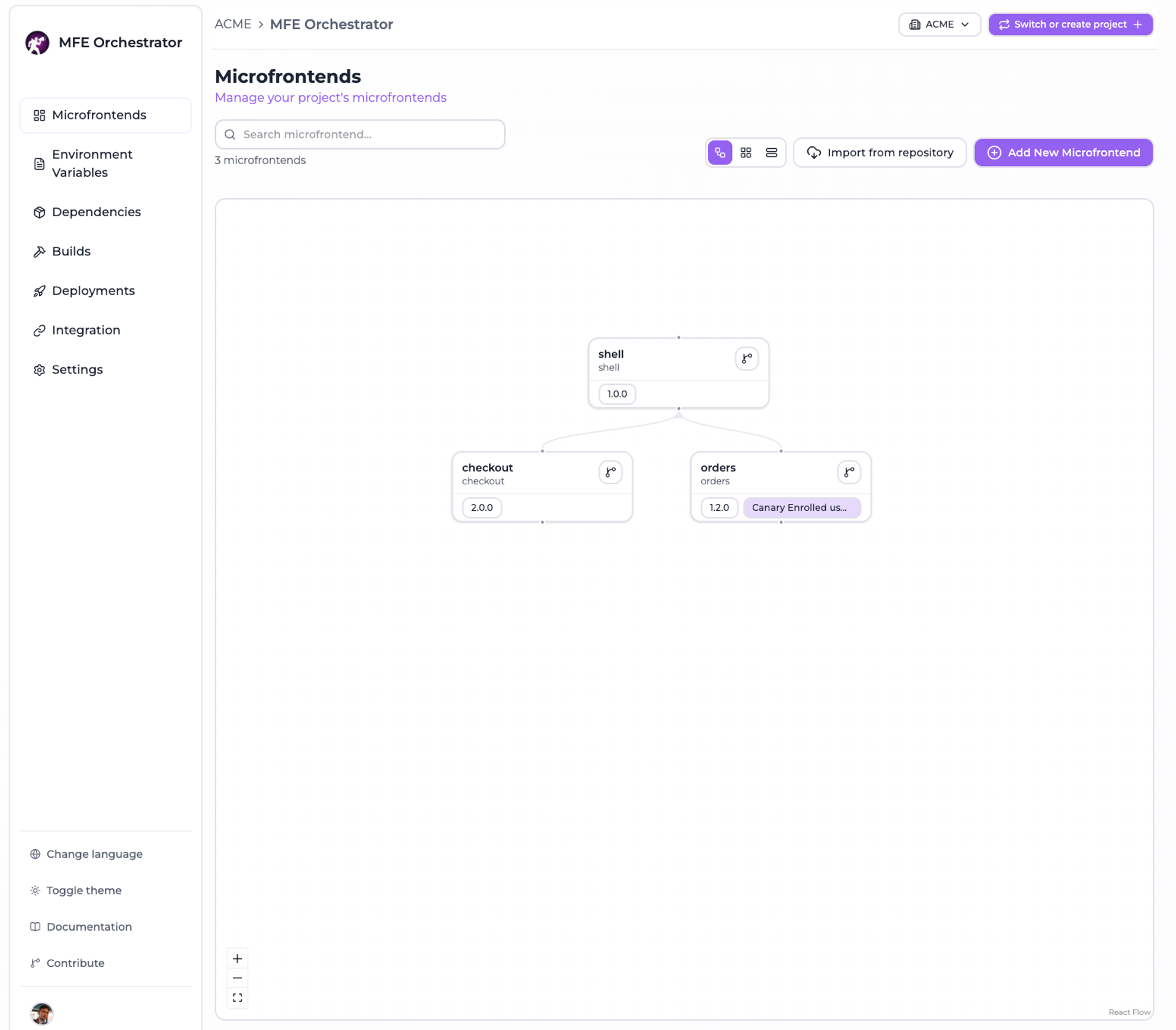
Here's what that looks like:
Step 1: Enable Canary for a Microfrontend
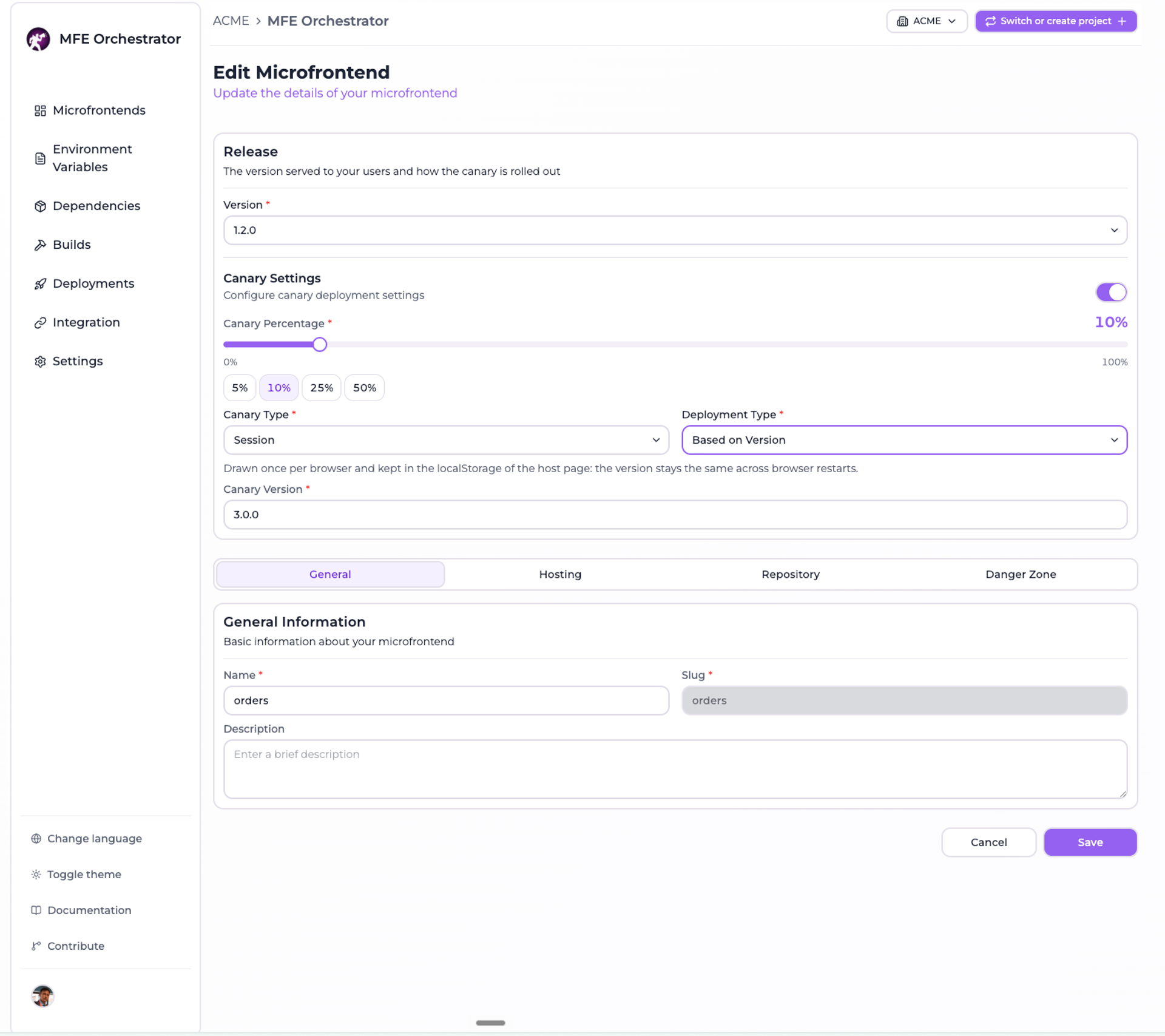
Open the microfrontend in your control panel. Under Release, you'll see Canary Settings. Toggle it on.
Step 2: Configure the Canary
You'll be asked for:
- Canary percentage - What % of new users get the new version? 10%
- Canary type - How do you want to split traffic? Sticky (per-user)
- Canary version - Which version is the canary?
1.2.0-beta - Deployment type - Should the new version be deployed fresh, or just routed to? Use existing deployment
Step 3: Monitor
Watch your metrics. Error rates, session duration, user feedback—whatever tells you if the canary is healthy.
Step 4: Increase the Percentage
As confidence grows, increase the percentage. 10% → 25% → 50% → 100%.
Or if something goes wrong: instant rollback. Flip the percentage back to 0%, and all traffic goes back to the stable version. No re-deploy. No cache-busting. Just a config change.
How MFE Orchestrator Handles This
If you're using MFE Orchestrator, canary releases are built in. Here's the workflow:
- Deploy a new version of your MFE. Push to your repository; MFE Orchestrator detects the build and creates an immutable snapshot.
- Enable canary in the UI. One toggle. Four fields. That's it.
- Watch metrics. The orchestrator captures deployment events and canary outcomes.
- Increase or rollback. Adjust the percentage via the UI. Changes are instant; no CI/CD re-run required.
Why This Works
MFE Orchestrator makes three bets:
- Immutable deployment snapshots: Every version is locked in time. Rollback doesn't mean "re-run the build"; it means "point to a previous snapshot." Instant. ~30 seconds.
- Server-side sticky assignment: The decision about which version you get is made entirely server-side. The host page doesn't need to know or care. Sticky by default, so the same user always gets the same version within a session.
- Per-microfrontend decisions: You canary one MFE without affecting others. Checkout at 2.0, header at 1.5, and they work together seamlessly.
Step-by-Step Walkthrough: Setting Up Your First Canary
Let's say you've deployed a new version of your payment-mfe (v2.0). It's tested locally, but you want to be cautious before sending it to all 500K daily users.
Before You Start
- You have a stable version running (v1.5). Keep it as your baseline.
- You have a new version ready to test (v2.0). It's built, versioned, and deployed to your hosting.
- You're using an MFE orchestration layer (MFE Orchestrator, qiankun, single-spa + a custom control plane, etc.).
The Walkthrough
1. Navigate to your payment-mfe in the control panel.
Look for the Release section. You'll see the current version (v1.5) and a Canary Settings toggle.
2. Enable Canary Settings.
Toggle the switch. A form appears asking for:
- Canary percentage: Start small. 5%.
- Canary type: Choose "Sticky per-user" (same user always gets the same version).
- Canary version: Select v2.0.
- Deployment type: "Use existing deployment" (v2.0 is already deployed).
3. Click Save.
The orchestrator immediately starts routing 5% of traffic to v2.0. The other 95% gets v1.5.
4. Deploy another version
Go to the deployment panel and hot Deploy button
5. Monitor for the next 30 minutes.
Watch your error logs, session analytics, and user feedback. Is v2.0 crashing? Are cart completions still happening? Any JavaScript errors in the console?
If everything looks good: continue to Step 5.
If something breaks: immediately set canary percentage to 0%. Rollback is instant.
6. Increase the percentage.
After 30 minutes of green metrics, bump the canary to 10%. Wait another 30 minutes. Then 25%. Then 50%.
By the time you hit 100%, v2.0 is serving all traffic, and v1.5 is no longer in the critical path.
7. Turn off Canary Settings.
Once you're at 100%, you can either:
- Let the canary run indefinitely (keeps a fallback to v1.5 if v2.0 ever fails)
- Disable canary and make v2.0 the stable release
Common Pitfalls
Pitfall 1: Canary % Doesn't Add Up to 100%
If your canary is at 10% and your stable version is at 90%, where do the other 0% go?
They don't. The math always works out: if canary is at X%, stable is at (100 - X)%.
Pitfall 2: Jumping to 100% Too Quickly
It's tempting. Your canary looked good for 5 minutes. Ship it to everyone!
Resist. Wait for real usage patterns. Weekday traffic looks different from weekends. Mobile usage differs from desktop. Edge cases take time to appear.
Recommendation: Increase by 1-2x every 30–60 minutes, depending on your traffic volume.
Pitfall 3: Not Monitoring the Right Metrics
Canary health isn't just about "no errors." Also watch:
- Error rate: Obvious, but watch for slow increases (not just crashes).
- Response time: Did v2.0 get slower?
- User engagement: Are users dropping off? Completing transactions?
- Browser console errors: v2.0 might have script errors that don't crash but hurt UX.
Pitfall 4: Forgetting to Test the Rollback Path
You've decided canary is the way to go. But have you practiced rolling back? Setting percentage to 0% should be fast and painless. Do a drill.
When Not to Use Canary Releases
Canary releases are powerful, but they're not always the right choice:
- Breaking changes to your MFE contract: If v2.0 changes how remotes communicate with the host, canary won't help. You'd need to coordinate a host deployment first.
- One-off hotfixes: If you're patching a critical bug and need it live in 60 seconds, canary adds no value. Just deploy and monitor closely.
For most feature updates and optimization work, though? Canary is your friend.
The Payoff
Here's what canary releases buy you:
✅ Catch bugs before they hit all users
✅ Roll back in seconds, not minutes
✅ Test real production traffic (not synthetic)
✅ Gradual confidence building
✅ Less stress
That last one is underrated. Knowing you can safely test a new version on 5% of your users, then roll back with one click if something breaks—that's peace of mind.
TL;DR: The Canary Release Checklist
- [ ] You have a stable version (v1.5) running for all users.
- [ ] You have a new version (v2.0) built, tested, and deployed.
- [ ] You've enabled Canary Settings and set percentage to 5%.
- [ ] You've monitored error rates, response times, and user behavior for 30 minutes.
- [ ] You've increased percentage to 10%, then 25%, then 50%, waiting 30 minutes between each.
- [ ] At 100%, you've decided: keep the canary active (as a rollback safety net) or disable it.
- [ ] You've documented the rollout (when you increased %, what metrics you watched, any issues that came up).
Next Steps
If you're doing this manually today: You're probably maintaining custom feature flag logic, a dashboard to track canary %, and a runbook for rollbacks. That's fine—it works. But it's friction.
If you want to reduce that friction: Look into an MFE orchestration layer that handles canary natively. MFE Orchestrator is one option. The benefit: canary releases become a 30-second UI interaction instead of a custom integration.
Either way, canary releases are your best tool for safe, confident microfrontend deployments.