Projects and access control
A project is the container every configuration object belongs to: microfrontends, environments, storages, code repositories, API keys and members all belong to exactly one project.
The project in turn belongs to exactly one organization, which is the tenant that owns it and the level deciding who reaches the project at all. See Organizations.
What belongs in one project
A good rule of thumb: one project per application, where an application is a set of microfrontends deployed together and sharing a host.
Signs you want a second project rather than a bigger one:
- The microfrontends are never deployed together
- Different teams should not see each other's configuration
- The release cadences are unrelated
- The environments genuinely differ (not just in values, but in which environments exist)
Signs you want one project:
- A shared host loads all of them
- They are promoted through the same stages
- The same people manage all of them
Bear in mind that microfrontends can only be wired into a host graph within a project, and API keys are project-scoped. Splitting an application across projects means losing the relation graph that generates your Module Federation configuration — usually not worth it.
Creating a project
Your first project is created during onboarding: after registering you are asked to create an organization, and the project wizard opens inside it.
Additional projects are created through the project wizard, which has five steps:
- Name — the project name, and a description. The name is required, at least three characters, and the slug is derived from it.
- Environments — pick from a set of default stages, or define your own
- Storage — connect a bucket for the artifacts, or skip
- Repositories — connect a code repository, or skip
- Collaborators — type the email addresses to invite, with a role each, or skip. They receive an email invitation, exactly as from Members and roles.
The last three steps are skippable, and every one of them can be done later from Settings.
:::caution Leaving the wizard halfway creates a half-configured project The project row is created the moment you complete step 1, before any environment exists. Nothing remembers where you were: the step you are on is component state, with no draft saved anywhere, so closing the wizard or reloading the page starts a fresh one — and completing that fresh one creates a second project, leaving the first behind with whatever it had at the time.
If it happens, delete the abandoned project from its own Danger Zone rather than trying to resume it. :::
The project is created inside the organization you are currently working in, and it stays there: a project cannot be moved to another organization afterwards.
:::caution Only organization owners and admins can create a project A plain member of an organization reaches the projects they were invited to and nothing else, so the wizard is not offered to them at all. See Roles and project visibility. :::
Switching projects
The project selector sits in the console header, next to the organization selector. Everything below it — microfrontends, deployments, settings — follows the selection.
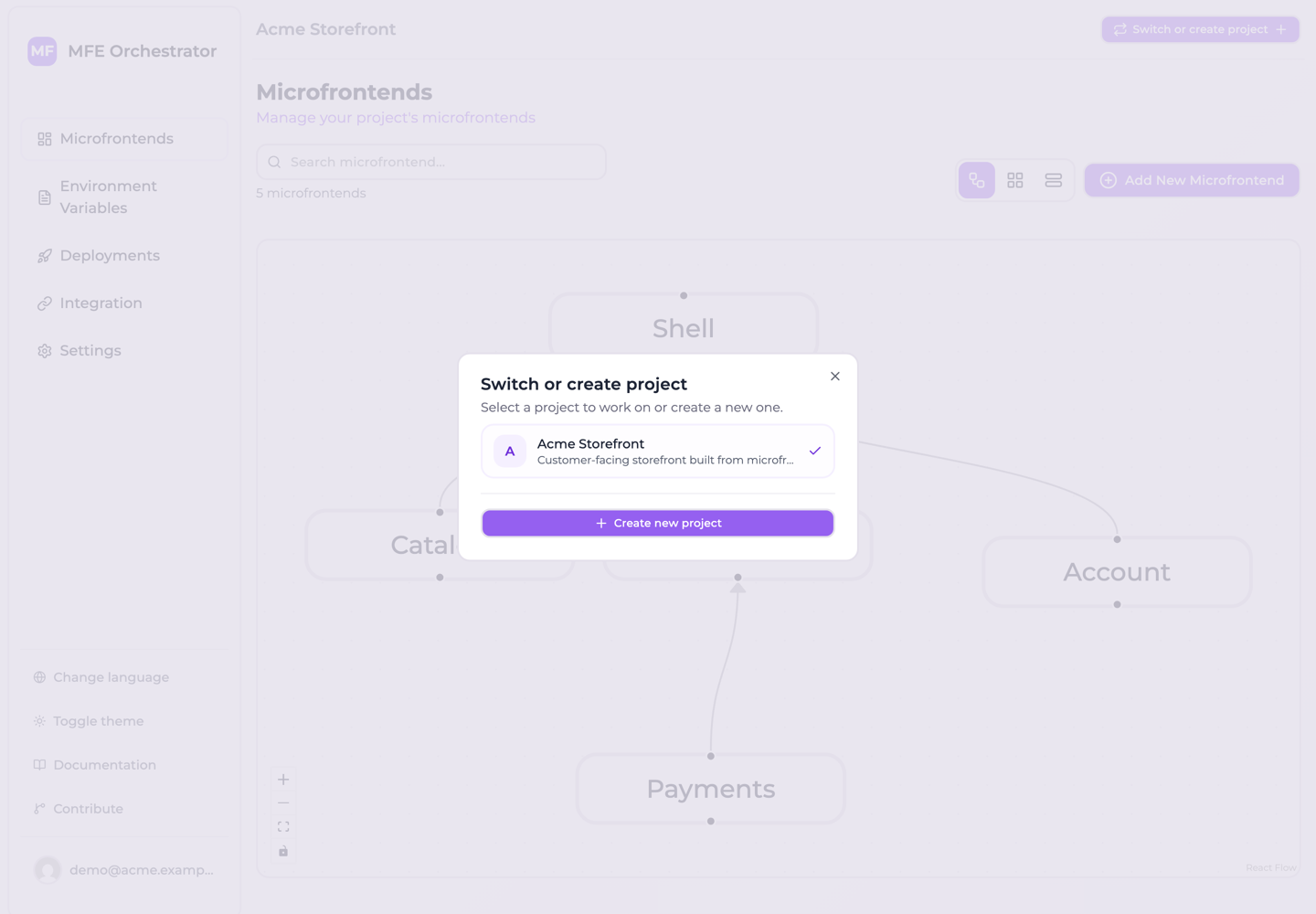
The list only ever offers projects of the organization you are in. If a page looks empty, check the selected project — and the selected organization — before anything else. It is the most common cause of "my microfrontends disappeared".
Project settings
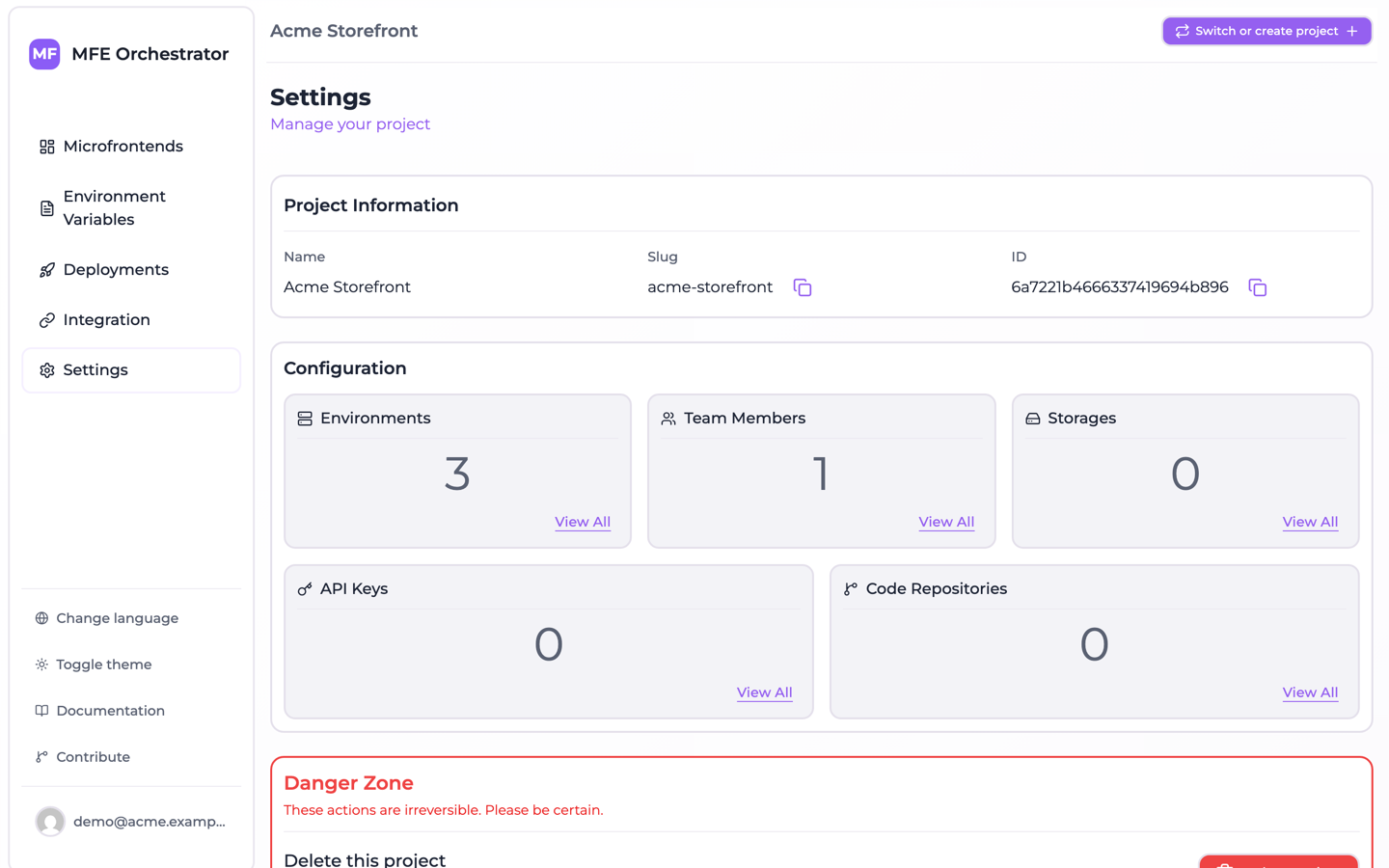
Settings in the sidebar is the project's control panel. It shows a configuration summary with counts, linking through to each area:
| Card | Leads to |
|---|---|
| Team Members | Members and roles |
| Environments | Environments |
| API Keys | API keys |
| Storages | Buckets |
| Code Repositories | Code repositories |
Project information
Under Project Information you will find:
| Field | Notes |
|---|---|
| Name | Editable display name. Required, at least two characters |
| Description | Editable free text |
| Slug | Read-only. URL-friendly identifier, part of storage paths. Copyable |
| ID | Read-only. The project id used in API calls and public serve URLs. Copyable |
The ID is what you need for the serve API and for project-id headers — this is where to copy
it from.
Renaming a project
Edit the Name, then Save. The name and the description are one form and are saved together, so an edit to either writes both.
The Slug does not follow the name, and cannot be edited at all. It is baked into the storage path of every bundle already uploaded — see the caution below — so re-deriving it from a new name would leave those files where nothing looks for them. A renamed project keeps the slug it was created with, which is worth knowing when you audit a bucket and find a path naming a project that no longer goes by that name.
:::caution The slug is part of your storage paths
Artifacts are stored under <projectSlug>-<projectId>/…. The id keeps paths unique regardless, but
be aware the slug appears in bucket paths when auditing storage.
:::
Deleting a project
Settings → Danger Zone → Delete Project removes the project and everything scoped to it, in one transaction: microfrontends, environments, variables, deployments and their history, API keys, member and invitation rows, storage connections, code repository connections, the record of every built frontend uploaded for those microfrontends, and any canary user enrolment on those deployments.
You must type the project name to confirm. There is no undo and no soft delete.
What is not deleted:
- Files already stored in your own buckets — the storage connection goes away, the objects stay
- Git repositories created from templates — those live in your provider
- Secrets written into your Git provider — remove
MICROFRONTEND_ORCHESTRATOR_API_KEYyourself if you want it gone
:::caution Deleting a project breaks live applications Every public serve endpoint for that project stops answering immediately. Any application currently loading microfrontends through it will fail to load them. Make sure nothing is serving from the project before you delete it. :::
API access
When calling the management API directly, the project is selected with a header:
project-id: 68f1a2b3c4d5e6f7a8b9c0d1
Some endpoints also take an environment-id header for environment-scoped resources such as
variables. Requests authenticated with an API key derive the project from
the key and do not need the header.