Microfrontend versions and builds
A microfrontend is only useful once there are artifacts to serve. This page describes how a version comes into existence, and the two ways to trigger one.
What a version is
A version is a string you choose — 1.0.0, 2026.02.14, 1.4.0-rc1 — under which a set of
built files is stored. MFE Orchestrator does not parse or order versions; it uses them as
folder names and as the value it hands to your host application.
Each microfrontend has one selected version in the project configuration, plus the history of every version that has ever been uploaded. What your users actually load is the version captured in the active deployment, not the one selected in the form.
Triggering a build from the console
If the microfrontend is linked to a code repository, its card shows a Build action. It opens a dialog asking for:
- Branch — the branch to build. The list is read live from your provider, with the default branch pre-selected.
- Version — the version to publish.
Pressing Start Build does one thing: it creates a Git tag named after the version, on the head commit of the selected branch, in your repository.
Everything after that happens in your CI:
Console: "Build 1.4.0 from main"
      │
      ▼
MFE Orchestrator creates tag "1.4.0" on main's HEAD
      │
      ▼
Your pipeline triggers on tag push
      │
      ├── install dependencies
      ├── build
      └── upload dist/ to MFE Orchestrator as version 1.4.0
      │
      ▼
Version 1.4.0 becomes selectable in the console
The generated pipelines are all tag-triggered, which is why this works out of the box. If you brought your own pipeline, make sure it triggers on tags — otherwise the Build button will create tags that nothing acts on.
The Build action requires a linked code repository. It has no effect on microfrontends without one.
You do not have to leave the console to know how that run went: the Build status page lists the latest run of every microfrontend of the project, reading it from GitHub Actions, GitLab pipelines or Azure DevOps, and updates while you watch.
Uploading from CI
The upload itself is a single authenticated call that takes a ZIP of your build output. The generated pipelines wrap it in a provider-specific task:
| Provider | Mechanism |
|---|---|
| GitHub Actions | mfe-orchestrator-hub/github-action |
| Azure DevOps | mfe-orchestrator-upload task |
| GitLab CI | Direct call to the upload endpoint |
All of them read the API key from the secret
MICROFRONTEND_ORCHESTRATOR_API_KEY, which MFE Orchestrator creates for you when it scaffolds a
repository.
See CI/CD for the full pipeline examples, and Manual upload for the raw HTTP call.
:::caution Custom URL microfrontends cannot be uploaded to Upload only works for microfrontends hosted on the MFE Orchestrator Hub or on a Custom Source bucket. For Custom URL, publishing is handled entirely by your own infrastructure — MFE Orchestrator only records which version to point at. :::
Selecting a version
Once a version exists, open the microfrontend and pick it in the Version field, at the top of the form in Release settings. The field offers the versions known to the platform, plus a Custom version option, which reveals a second box for typing one in directly — useful for Custom URL microfrontends, where the platform has no upload history to list.
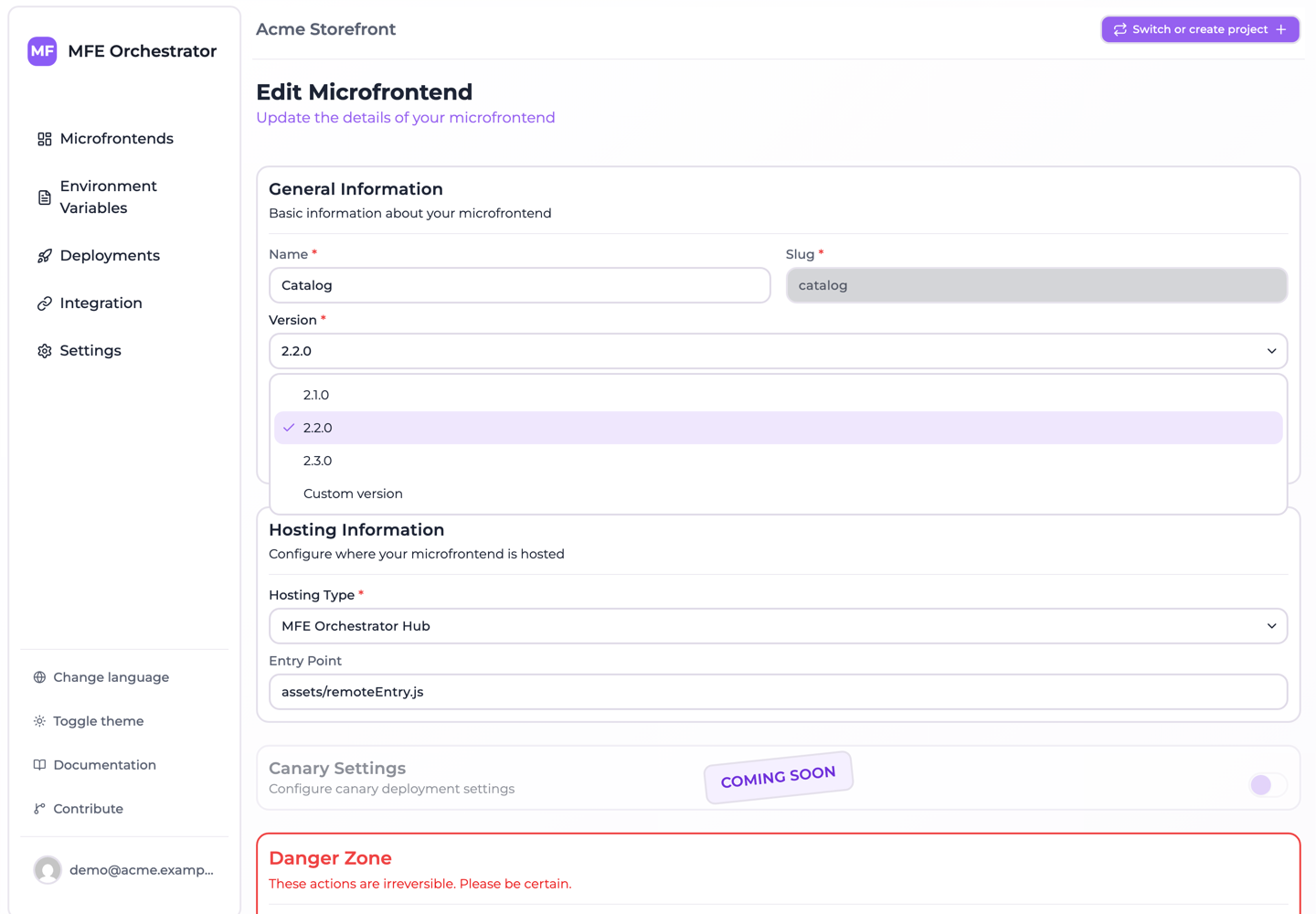
That list only appears when editing a microfrontend that already has uploads. On the creation form, and on any microfrontend nothing has been uploaded for, there is nothing to list, so the field is a plain text box.
Then deploy the environments you want to move.
Continuous deployment
The Continuous Deployment switch marks a microfrontend as continuously deployed. The flag is
stored on the microfrontend and published to consumers as continuousDeployment on the
serve API payload.
:::info It is a marker, not an automation
The platform does not currently change version resolution based on this flag — it does not skip the
deployment step or auto-select new versions. It is metadata your own tooling can act on: a host that
reads /serve/all/... can, for example, choose to poll for updates on continuously deployed remotes
and not on the others.
If you want builds to reach an environment without a manual step, the call to automate is
POST <API_BASE>/deployment after a successful upload — but it is authenticated with a signed-in
user's token, not with the CI API key, which only authorizes the upload. See
Uploading a build.
:::