Rollback and redeploy
Because deployments are immutable snapshots, rolling back is not a rebuild, a revert commit, or a re-upload. It is re-activating a snapshot that already exists.
Rolling back
- Open Deployments and select the affected environment.
- Find the last known-good deployment in History.
- Expand it and check its microfrontend versions and variables are what you expect.
- Choose Redeploy on that deployment.
Redeploy lives on the deployments in History, next to View canary users. The active deployment has no Redeploy button — re-activating what is already active would be a no-op.
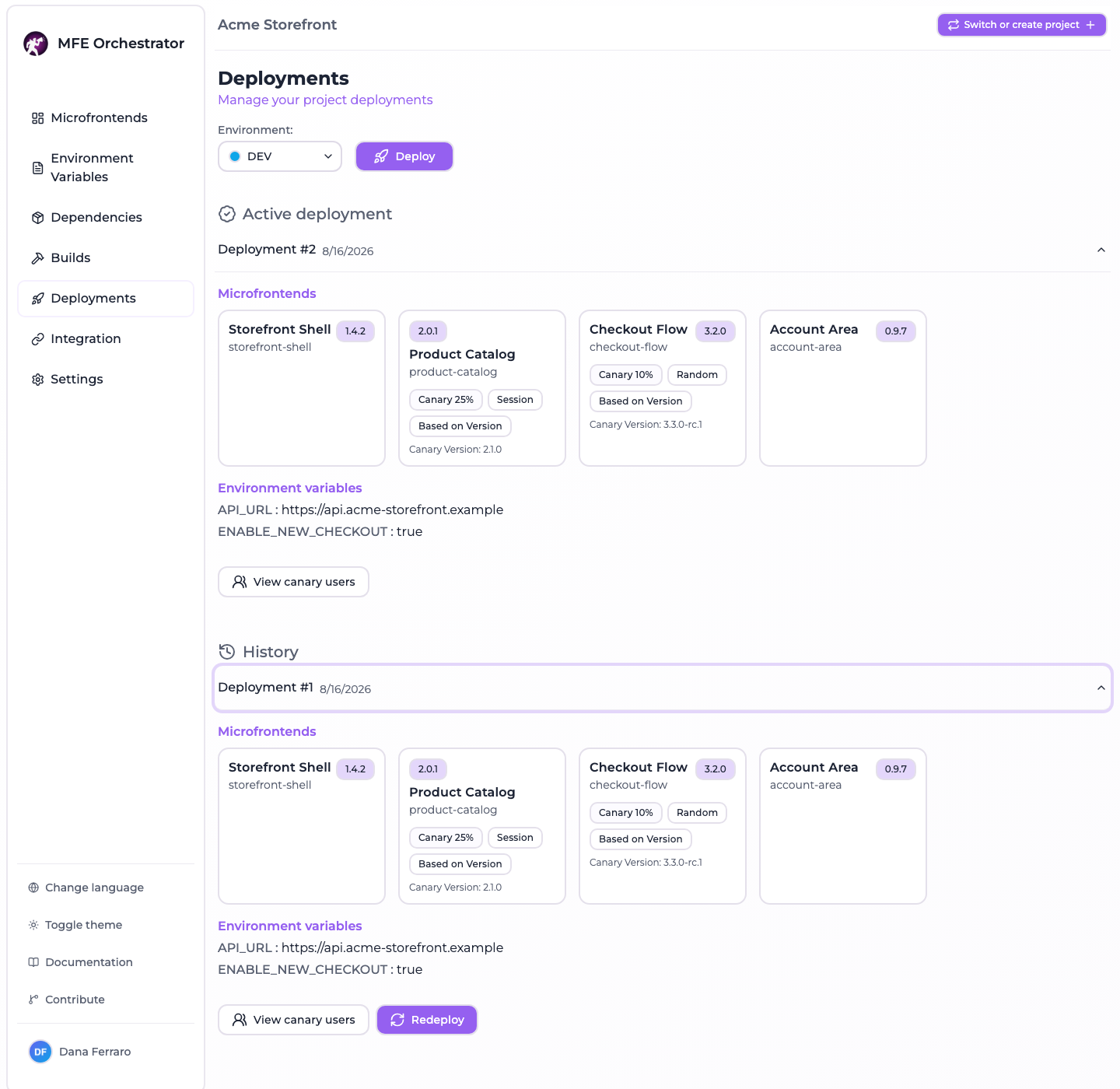
Reading the two snapshots against each other is the whole point. Above, #2 and #1 carry the same
versions, because nothing was edited between the two deployments — which is itself the answer to
"did anything actually change?". When they differ, the line you are looking for is the version badge
on a microfrontend card: #2 serving catalog at 2.2.0 while #1, one click away, still holds
2.1.0.
That deployment becomes active again and the broken one is deactivated. The manifest, the per-microfrontend configuration and the variables endpoints answer from the restored snapshot immediately. The routes that stream the files themselves do not all follow — read the next section before you rely on a rollback in production.
Because the microfrontend entry point is always served with
Cache-Control: no-cache, no-store, must-revalidate, browsers pick up the change on their next
request rather than after a cache expiry.
The file routes do not all follow a rollback
:::caution A rollback is not honoured by two of the three file routes
The manifest, the per-microfrontend configuration and the global-variables endpoints filter
deployments on the active flag, so Redeploy moves them at once. The three routes that stream
the bytes of a microfrontend do not filter on it: each takes the newest deployment of the
environment, and they order "newest" differently.
| File route | Newest by | After a rollback |
|---|---|---|
/serve/mfe/files/:projectId/:envSlug/:mfeSlug/* | Deployment time | Serves the restored snapshot |
/serve/mfe/files/auto/:projectId/:mfeSlug/* | Creation time | Keeps serving the snapshot you rolled back from |
/serve/mfe/files/:mfeId/* | Creation time | Keeps serving the snapshot you rolled back from |
Redeploy sets the active flag and stamps a new deployment time, but the creation time stays the moment the snapshot was first taken. The two creation-time routes therefore keep pointing at the most recently created snapshot — the broken one. :::
Because the manifest does honour the rollback, the outcome is worse than a rollback that has not landed yet: the manifest reports the restored version while those two routes stream the files of the version you rolled back from. The version your host believes it is running and the code it actually runs disagree, which is not a state any error message will point you at.
Whether this reaches you depends on which URL your host asks for. Every microfrontend URL the
manifest hands out carries the environment slug, and that is the route ordered by deployment time —
so a host wired through the client SDK, or through any code that
loads the URLs the manifest returned, lands on the behaviour that is correct. Only a consumer that
calls the auto or :mfeId file URLs directly — hardcoded in an index.html or in a Module
Federation remotes block — is exposed.
If you are in that position, do not stop at the rollback. Set the microfrontend's selected version back to the good one and press Deploy: a new snapshot is the newest by both orderings, so every route follows it. See Serve API for the routes themselves.
What a rollback restores
Everything in the snapshot, together:
- Microfrontend versions
- Hosting configuration and entry points
- Canary settings
- Environment variables
- Storage configuration
The canary enrolment comes back with it too, but for a different reason: enrolment rows are stored per deployment, and the one you re-activate still holds its own. That is the list as it was on that deployment, which is not necessarily the list you had a minute ago — if you enrolled someone after the deployment you are rolling back to was replaced, check canary users afterwards.
This matters when an incident has more than one cause. If a bad release changed both a version and a feature-flag variable, rolling back the deployment undoes both — you do not have to remember which variables moved.
What a rollback does not do
| Not restored | Why |
|---|---|
| Your project's draft configuration | The console keeps showing the versions and variables you last selected. Only the active snapshot changes |
| Deleted microfrontends | A microfrontend deleted from the project is gone from the project, even if older snapshots mention it |
| Data outside MFE Orchestrator | Database migrations, backend deployments and CDN state are yours to manage |
Point one is a common surprise: after a rollback, the console still shows the version you were trying to ship, because that is still what you have selected. Reconcile the draft afterwards, or your next deployment will re-ship the bad version.
:::tip After rolling back Set the microfrontend's selected version back to the good one straight away. It costs ten seconds and prevents the next deployment from re-introducing the incident. :::
Redeploy does not publish your edits
Redeploy re-activates an existing snapshot, with a fresh timestamp, exactly as it was stored. It never picks up draft changes: a version you selected, a variable you edited or a remote you rewired since that snapshot was taken are not in it.
To publish edits you want Deploy, which takes a new snapshot of the current configuration. The two buttons sit on different things for that reason — Deploy at the top of the page, on the selected environment, and Redeploy inside a deployment of the history.
Deployment numbering
Numbers are assigned per environment and never reused: #1, #2, #3 … A rollback does not
create a new number — it re-activates an existing one. So a history where #7 is active after
#9 existed is entirely normal, and tells you at a glance that a rollback happened.
A rehearsal worth doing
Roll back once in a non-production environment before you need to do it under pressure:
- Deploy a version, note the deployment number.
- Bump the version and deploy again.
- Redeploy the first snapshot and confirm your app serves the old version.
Ten minutes now buys confidence during an incident.