Storage overview
A bucket — a storage in the console — is a connection to object storage you own. With one configured, microfrontend builds are stored in your own cloud account instead of on the platform, while MFE Orchestrator continues to handle versioning, deployments and serving.
Buckets live under Settings → Storages.
Why use your own bucket
| MFE Orchestrator Hub | Your bucket | |
|---|---|---|
| Where artifacts live | Platform storage | Your cloud account |
| Data residency control | ❌ | ✅ |
| Your retention & backup policy | ❌ | ✅ |
| Setup effort | None | Bucket + credentials |
| Durability guarantees | Platform's | Your provider's SLA |
For production use — and for anything with compliance requirements — your own bucket is the right answer. The hub is excellent for getting started and for self-hosted installations where you already own the disk.
Supported providers
| Provider | Authentication methods |
|---|---|
| Amazon S3 | Access key ID + secret access key |
| Azure Blob Storage | Connection string, shared key, or Azure AD application |
| Google Cloud Storage | Service account JSON key |
How it works
Once a storage is configured and selected on a microfrontend whose hosting type is Custom Source:
CI uploads dist.zip
      │
      ▼
MFE Orchestrator extracts it and writes to YOUR bucket
      │
      ▼
Browser requests remoteEntry.js
      │
      ▼
MFE Orchestrator reads from YOUR bucket with your credentials
and streams the file back
Two things follow from this:
- Your bucket does not need to be public. Files are read server-side with the credentials you configured. Keep the bucket private.
- Your bucket does not need CORS configuration. The browser talks to MFE Orchestrator, not to your bucket, so cross-origin headers are the platform's concern.
Path layout
Files are stored under a deterministic path:
<storage path>/<projectSlug>-<projectId>/<microfrontendSlug>/<version>/…
For example, with a storage path of mfe:
mfe/my-shop-68f1a2b3c4d5e6f7/catalog/1.4.0/assets/remoteEntry.js
mfe/my-shop-68f1a2b3c4d5e6f7/catalog/1.4.0/assets/index-4f2a.css
mfe/my-shop-68f1a2b3c4d5e6f7/catalog/1.5.0/assets/remoteEntry.js
The project id is part of the prefix, so several projects — and several MFE Orchestrator installations — can share one bucket without colliding. Versions sit side by side, which is what makes rollback instant: nothing is overwritten or deleted on a new release.
Adding a storage
-
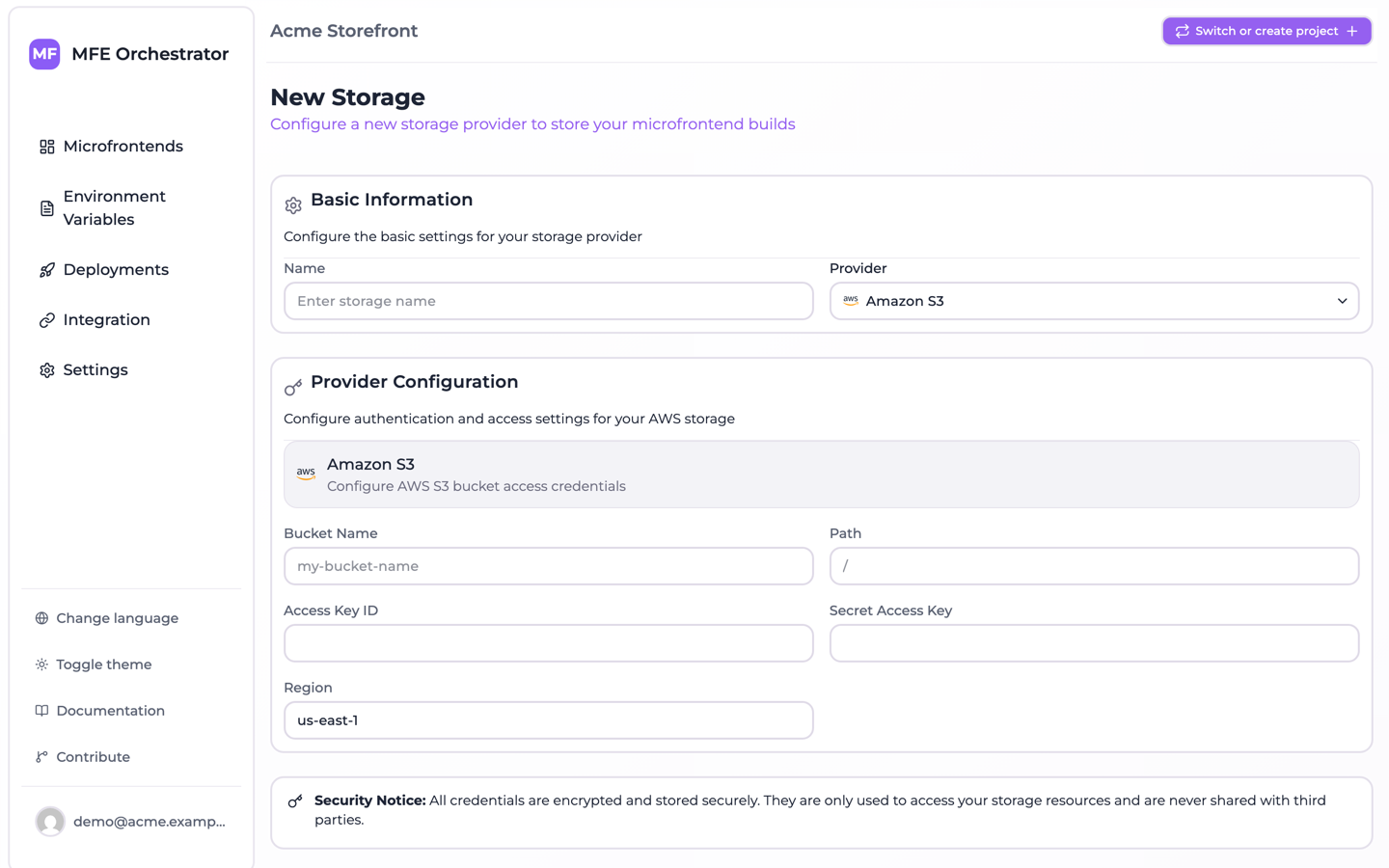
Go to Settings → Storages and click New Storage.
-
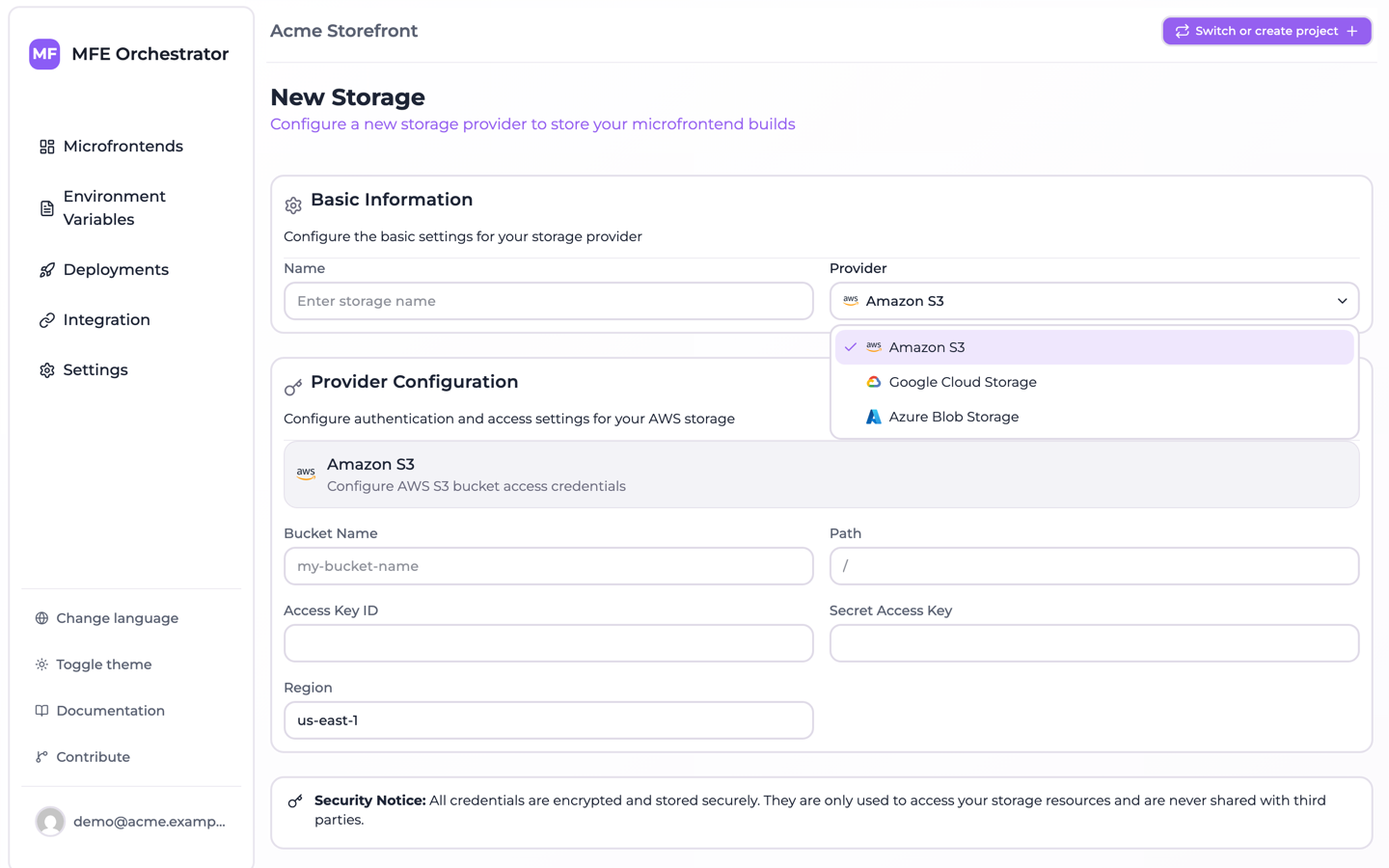
Give it a Name and pick the Provider.
-
Fill in the provider-specific credentials — see the per-provider pages.
-
Optionally set a Path prefix inside the bucket.
-
Save.
:::caution The provider cannot be changed later A storage's provider type is fixed at creation. To move from S3 to GCS, create a new storage and re-point your microfrontends at it. :::
You can mark one storage as the default for the project, which is then preselected for new microfrontends.
Using a storage
On the microfrontend, set Hosting type to Custom Source and pick the storage. Then upload as usual — the platform routes the artifact to your bucket. See Hosting options.
Existing versions are not migrated when you change a microfrontend's storage. Change it, then publish a new version.
Credentials and least privilege
MFE Orchestrator needs to read and write objects under its prefix, and nothing else. Each provider page includes a minimal permission set — grant that rather than a broad administrative role.
Credentials are stored by the platform and never returned to the browser once saved. Rotate them on your provider's normal schedule and update the storage when you do.
Housekeeping
The platform never deletes old versions: every release you have ever published stays in the bucket. That is what makes rollback reliable, but it does grow without bound. Consider a lifecycle rule that expires objects older than your rollback window — S3 lifecycle policies, Azure blob lifecycle management, or GCS object lifecycle.
Do not expire objects still referenced by a deployment you might roll back to. A rule that deletes anything older than 90 days is safe if your rollback window is a fortnight; a rule that keeps only the two newest versions is not, because an environment may be sitting on an older one.