Store builds on Google Cloud Storage
MFE Orchestrator authenticates to Google Cloud Storage with a service account JSON key.
Prerequisites
- A Google Cloud project
- Permission to create buckets, service accounts and keys
Step 1: Create the bucket
In the Cloud console, open Cloud Storage → Buckets → Create:
- Name — globally unique, e.g.
acme-microfrontends - Location — a region close to your users
- Storage class — Standard
- Access control — Uniform (simpler and recommended; IAM only, no per-object ACLs)
- Public access prevention — leave enabled
:::tip Keep the bucket private MFE Orchestrator reads objects server-side with your credentials and streams them to browsers itself. The bucket never needs to be public, and no CORS configuration is required. :::
Step 2: Create a service account
- IAM & Admin → Service accounts → Create service account.
- Name it e.g.
mfe-orchestrator. - Skip the optional project-level role grant — you will grant access on the bucket instead, which is tighter.
- Create it.
Step 3: Grant access on the bucket
- Open Cloud Storage → Buckets → your bucket → Permissions.
- Grant access, with the service account's email as the principal.
- Assign the role Storage Object Admin (
roles/storage.objectAdmin).
:::info Why Storage Object Admin
The platform reads and writes objects. objectViewer is insufficient (uploads fail) and
storage.admin grants bucket administration the platform does not need. objectAdmin, granted on
the single bucket, is the right scope.
:::
Granting at the bucket rather than the project keeps the service account unable to touch anything else.
Step 4: Create a JSON key
- Open the service account → Keys → Add key → Create new key.
- Choose JSON and create. The file downloads once.
- Keep it safe — it is a long-lived credential.
The file looks like this:
{
  "type": "service_account",
  "project_id": "acme-prod",
  "private_key_id": "…",
  "private_key": "-----BEGIN PRIVATE KEY-----\n…\n-----END PRIVATE KEY-----\n",
  "client_email": "mfe-orchestrator@acme-prod.iam.gserviceaccount.com",
  "client_id": "…",
  "…": "…"
}
Step 5: Add the storage in MFE Orchestrator
Go to Settings → Storages → New Storage and select Google Cloud Storage:
| Field | Value |
|---|---|
| Name | A label, e.g. Production GCS |
| Bucket Name | acme-microfrontends |
| Path | Optional prefix inside the bucket, e.g. mfe |
| Authentication Type | Service Account |
| Service Account Credentials | Paste the entire contents of the JSON key file |
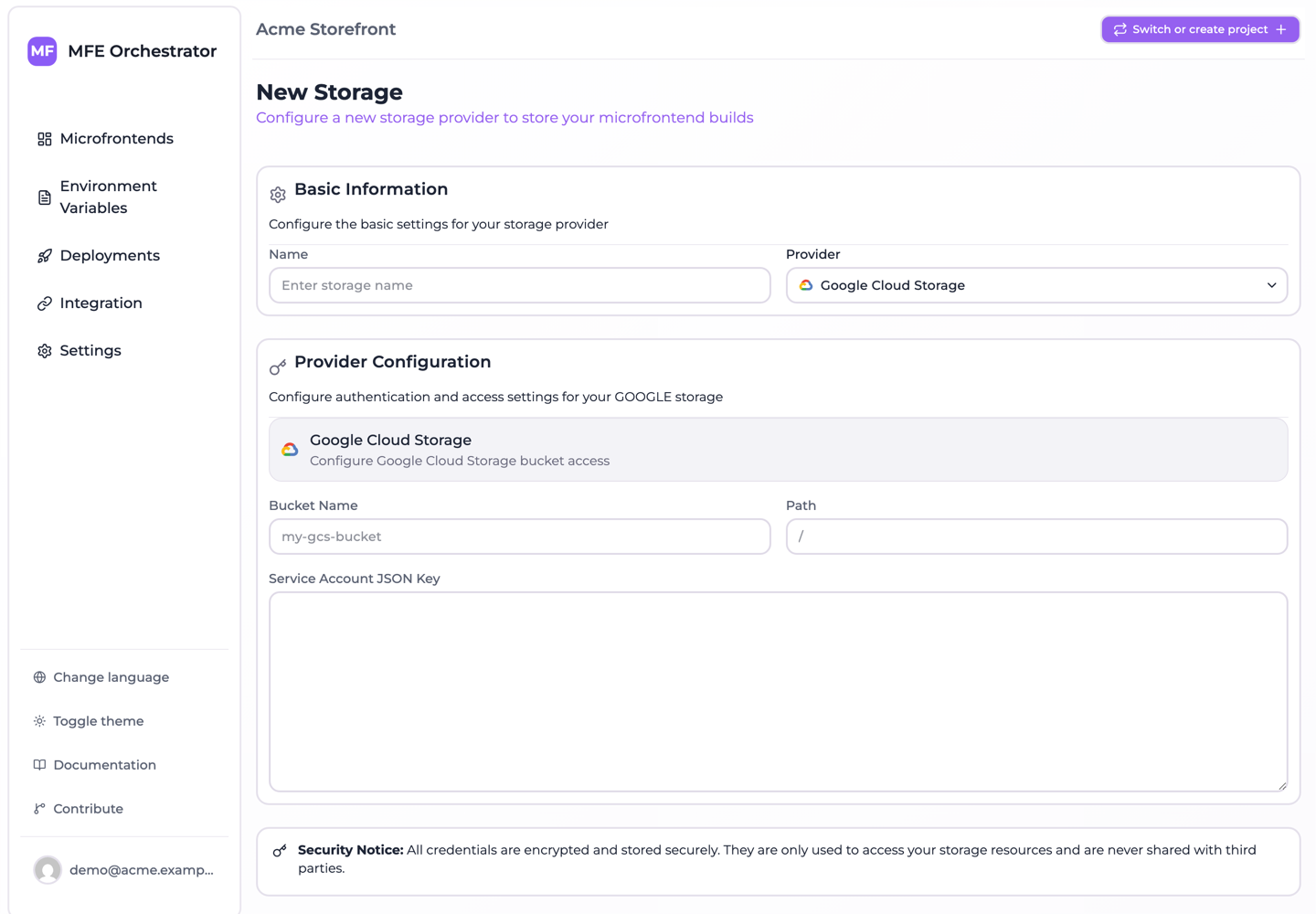
Paste the whole JSON document, not just the private key — the platform reads client_email and
private_key out of it.
Save.
Step 6: Point a microfrontend at it
Open a microfrontend, set Hosting type to Custom Source, select this storage, and save. New versions land at:
<path>/<projectSlug>-<projectId>/<microfrontendSlug>/<version>/…
Then deploy the environment.
Troubleshooting
Invalid JSON / parse error on save
The credentials field must contain valid, complete JSON. A common cause is pasting a fragment, or an
editor mangling the \n escapes inside private_key. Copy directly from the downloaded file
without reformatting.
403 does not have storage.objects.create access
The service account lacks write permission on the bucket. Confirm the Storage Object Admin binding exists on the bucket and names the correct service account email. IAM changes can take a minute to propagate.
403 does not have storage.objects.get access
Read permission is missing. objectAdmin covers both read and write — if you granted objectCreator
instead, uploads succeed and serving fails.
404 Not Found for the bucket
Check the bucket name for typos, and that the service account belongs to a project that can see it.
Files upload but the app 404s
Check the Entry Point on the microfrontend. Vite Module Federation emits
assets/remoteEntry.js; browse the version prefix in the Cloud console to see the actual layout.
Key rotation
Service account JSON keys do not expire by default, which makes them convenient and a long-term risk. Rotate them on a schedule:
- Create a second key for the same service account.
- Update the storage in MFE Orchestrator with the new JSON.
- Verify a file still serves.
- Delete the old key in the Cloud console.
If your organisation enforces a key-expiry policy, put the rotation date in the calendar — an expired key surfaces as a sudden serving failure with no warning.