Store builds on Azure Blob Storage
MFE Orchestrator supports three ways of authenticating against Azure Blob Storage. Pick one and follow the matching section.
| Method | When to use it |
|---|---|
| Connection string | Quickest to set up; grants access to the whole storage account |
| Shared key (Api Key in the console) | Account name + key, scoped to one container |
| Azure AD (Enterprise Application) | Recommended for production — a service principal with a role assignment you control |
Prerequisites
- An Azure subscription
- Permission to create storage accounts and, for the Azure AD method, app registrations
Step 1: Create the storage account and container
- In the Azure portal, create a Storage account (or reuse one).
- Performance: Standard is fine
- Redundancy: your call; LRS is sufficient for rebuildable artifacts
- Inside it, open Data storage → Containers and create a container, e.g.
microfrontends. - Set the container's Public access level to Private.
:::tip Keep the container private MFE Orchestrator reads blobs server-side with your credentials and streams them to browsers itself. The container never needs public access, and no CORS rules are required. :::
Step 2: Choose an authentication method
Option A — Connection string
- Open the storage account → Security + networking → Access keys.
- Click Show keys and copy the Connection string for key1.
Simple, but the connection string grants full access to every container in the account, and rotating the account key invalidates it. Fine for a trial; prefer Azure AD for production.
Option B — Shared key
From the same Access keys page, copy:
- The Storage account name
- The Key value
Scoped to the container you name in MFE Orchestrator, but still derived from an account-level key.
Option C — Azure AD (recommended)
- Microsoft Entra ID → App registrations → New registration. Name it e.g.
mfe-orchestrator-storage. No redirect URI is needed. - Note the Application (client) ID and Directory (tenant) ID from the overview page.
- Certificates & secrets → New client secret. Copy the secret Value immediately — it is shown once. Note the expiry date and set a reminder to rotate.
- Grant the app access to the container:
- Open the storage account (or, for tighter scope, the container)
- Access Control (IAM) → Add role assignment
- Role: Storage Blob Data Contributor
- Assign access to: User, group, or service principal → select your app registration
Scoping the role assignment at the container rather than the account is the least-privilege choice.
:::info Why Storage Blob Data Contributor The platform needs to read and write blobs. Reader is insufficient (uploads fail) and Owner grants more than is needed. Contributor at container scope is the right level. :::
Step 3: Add the storage in MFE Orchestrator
Go to Settings → Storages → New Storage and select Azure Blob Storage. The fields depend on the Authentication Type you pick:
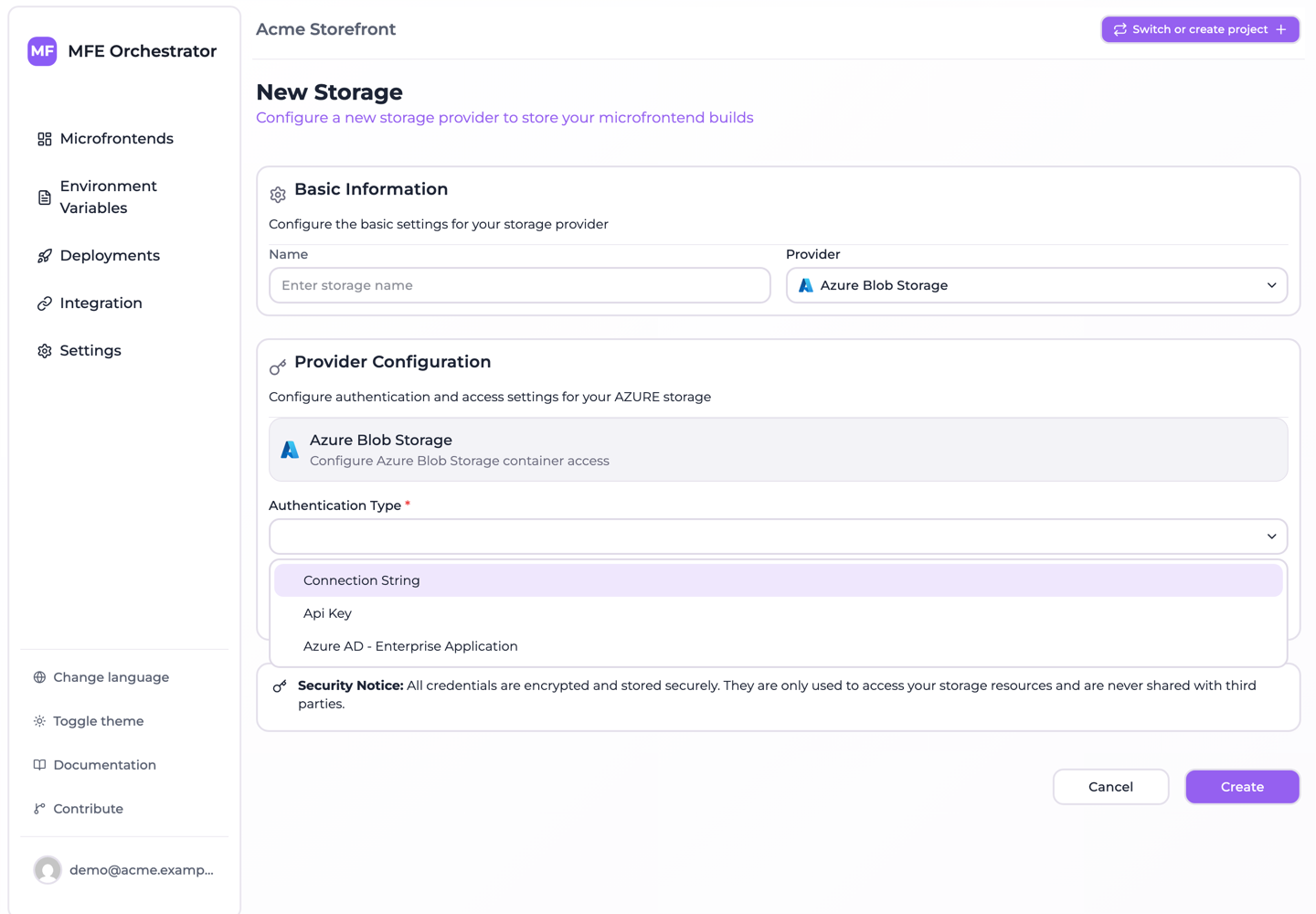
Connection String
| Field | Value |
|---|---|
| Container Name | microfrontends |
| Connection String | From Option A |
| Path | Optional prefix inside the container |
Api Key (shared key)
| Field | Value |
|---|---|
| Container Name | microfrontends |
| Account Name | The storage account name |
| Account Key | From Option B |
| Path | Optional prefix inside the container |
Azure AD - Enterprise Application
| Field | Value |
|---|---|
| Container Name | microfrontends |
| Account Name | The storage account name |
| Tenant ID | Directory (tenant) ID |
| Client ID | Application (client) ID |
| Client Secret | The secret value from step C3 |
| Path | Optional prefix inside the container |
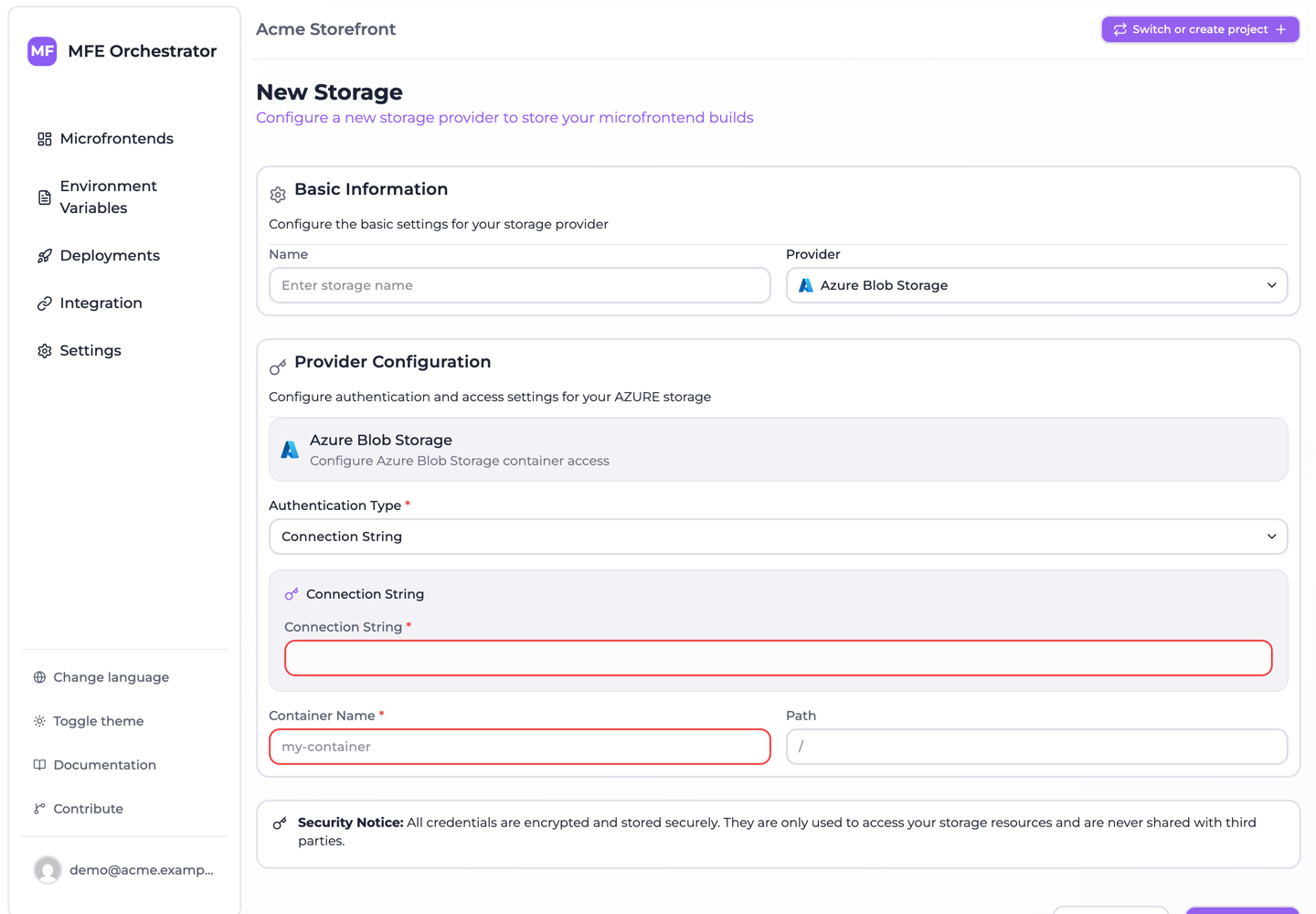
Save.
Step 4: Point a microfrontend at it
Open a microfrontend, set Hosting type to Custom Source, select this storage, and save. New versions land at:
<path>/<projectSlug>-<projectId>/<microfrontendSlug>/<version>/…
Then deploy the environment.
Troubleshooting
AuthorizationPermissionMismatch (Azure AD)
The service principal has no suitable role on the container. Confirm the Storage Blob Data Contributor assignment exists and that it is scoped to the account or container you configured. Role assignments can take a few minutes to propagate.
AuthenticationFailed (shared key)
Usually a truncated or whitespace-padded account key, or a mismatch between the account name and the key. Re-copy both from the portal.
ContainerNotFound
The Container Name is wrong, or the container lives in a different storage account than the one your credentials point at.
Everything worked, then stopped
If you used Azure AD, check whether the client secret expired — this is the most common cause of a storage that worked for months and then failed. Create a new secret and update the storage.
Files upload but the app 404s
Check the Entry Point on the microfrontend. Vite Module Federation builds emit
assets/remoteEntry.js; you can verify the layout by browsing the version prefix in Storage
Explorer.
Secret rotation
Client secrets and account keys both expire or get rotated. When you rotate:
- Create the new secret/key alongside the old one.
- Update the storage in MFE Orchestrator.
- Verify a file still serves.
- Remove the old credential.
Doing it in that order avoids a window where serving is broken.