Store builds on Amazon S3
This page walks through connecting an S3 bucket to MFE Orchestrator.
Prerequisites
- An AWS account
- Permission to create S3 buckets and IAM users/policies
Step 1: Create the bucket
In the AWS console, open S3 → Create bucket:
- Bucket name — globally unique, e.g.
acme-microfrontends - Region — pick one close to your users; note it, you will need it
- Block Public Access — leave enabled
:::tip Keep the bucket private MFE Orchestrator reads objects server-side with your credentials and streams them to browsers itself. The bucket never needs to be public, and no CORS configuration is required. :::
Versioning is optional. MFE Orchestrator already stores each release under its own version prefix, so S3 versioning adds protection against accidental overwrites rather than release history.
Step 2: Create an IAM policy
Create a policy granting only what the platform needs. Replace acme-microfrontends with your
bucket name, and mfe/ with your intended path prefix (or drop the prefix to allow the whole
bucket):
{
  "Version": "2012-10-17",
  "Statement": [
    {
      "Sid": "ObjectAccess",
      "Effect": "Allow",
      "Action": [
        "s3:GetObject",
        "s3:PutObject"
      ],
      "Resource": "arn:aws:s3:::acme-microfrontends/mfe/*"
    },
    {
      "Sid": "ListBucket",
      "Effect": "Allow",
      "Action": "s3:ListBucket",
      "Resource": "arn:aws:s3:::acme-microfrontends",
      "Condition": {
        "StringLike": {
          "s3:prefix": "mfe/*"
        }
      }
    }
  ]
}
Note there is no s3:DeleteObject: MFE Orchestrator never deletes artifacts. Leaving it out means a
compromised key cannot destroy your release history. Add it only if you plan to use the same
credentials for housekeeping — better still, use a
lifecycle rule,
which needs no credentials at all.
Step 3: Create an IAM user and access key
- IAM → Users → Create user, e.g.
mfe-orchestrator. - Do not grant console access — this identity is only used programmatically.
- Attach the policy from step 2.
- Open the user, go to Security credentials → Create access key, and choose Application running outside AWS.
- Copy the Access key ID and Secret access key. The secret is shown once.
Step 4: Add the storage in MFE Orchestrator
Go to Settings → Storages → New Storage and select Amazon S3:
| Field | Value |
|---|---|
| Name | A label, e.g. Production S3 |
| Bucket Name | acme-microfrontends |
| Path | Optional prefix inside the bucket, e.g. mfe. Leave blank for the bucket root |
| Access Key ID | From step 3 |
| Secret Access Key | From step 3 |
| Region | The bucket's region, e.g. eu-west-1 |
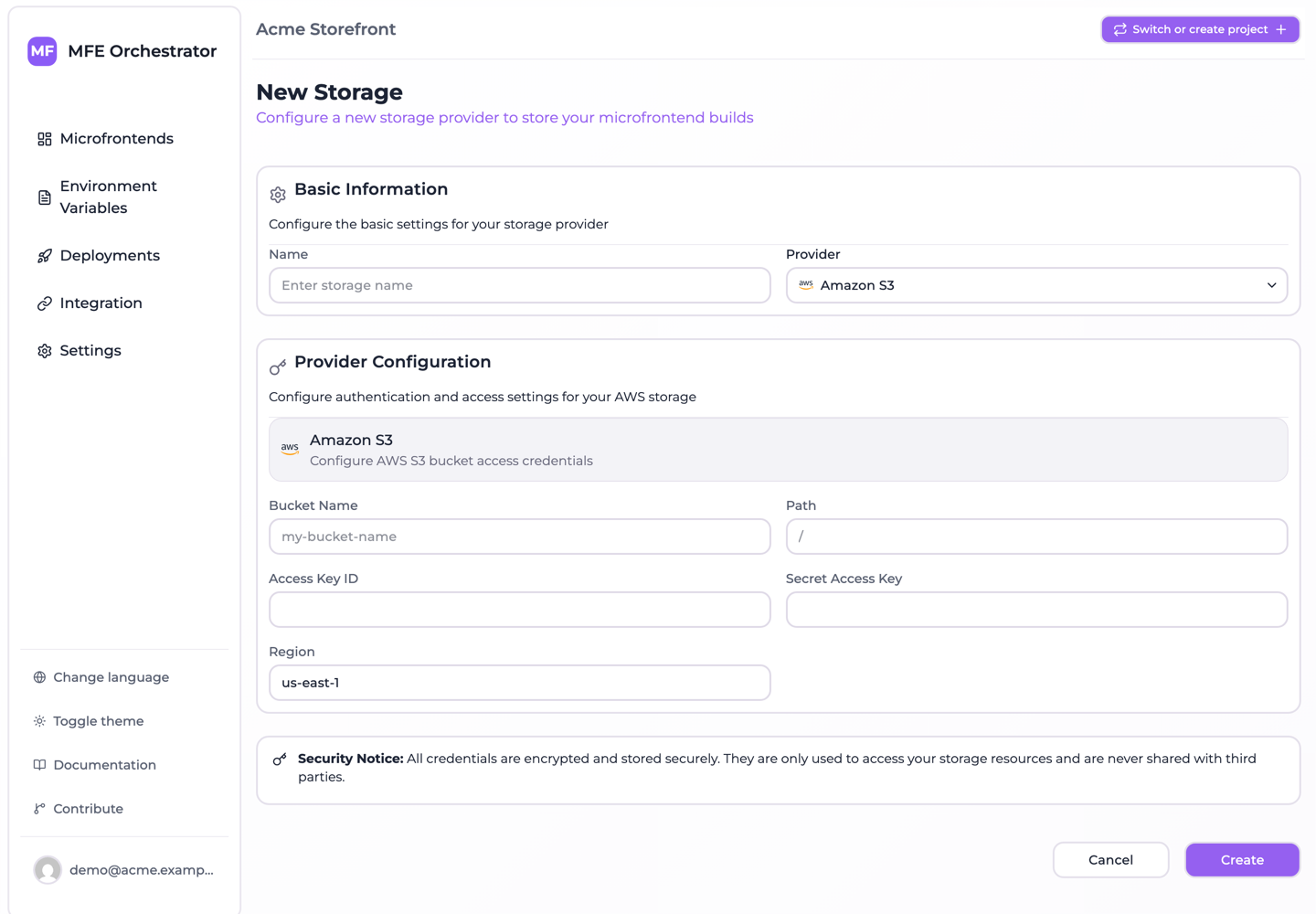
Save.
Step 5: Point a microfrontend at it
Open a microfrontend, set Hosting type to Custom Source, select this storage, and save. Publish a new version — the artifact now lands in your bucket, at:
mfe/<projectSlug>-<projectId>/<microfrontendSlug>/<version>/…
Then deploy the environment.
Troubleshooting
AccessDenied on upload
The key lacks s3:PutObject on the path being written. Check the policy's Resource ARN covers
your configured Path prefix — a policy scoped to mfe/* will reject writes if the storage has
no path set, because objects then land at the bucket root.
AccessDenied on serving, but upload worked
s3:GetObject is missing. Both actions are needed: the platform writes on upload and reads on every
request.
NoSuchBucket or region errors
The Region field must match the bucket's actual region. A bucket in eu-west-1 configured as
us-east-1 fails to resolve.
Files upload but the app 404s
Usually the Entry Point. Check what your build actually produces — Vite Module Federation emits
assets/remoteEntry.js, not remoteEntry.js. You can verify by browsing the version prefix in the
S3 console.
Cost notes
The traffic pattern is GET requests from MFE Orchestrator to S3, one per file served, plus egress
from S3 to the platform. Both are small for typical bundles, but if your microfrontends are heavily
trafficked and large, consider a bucket in the same region as your MFE Orchestrator installation to
reduce inter-region egress.