Maestro, the assistant of the console
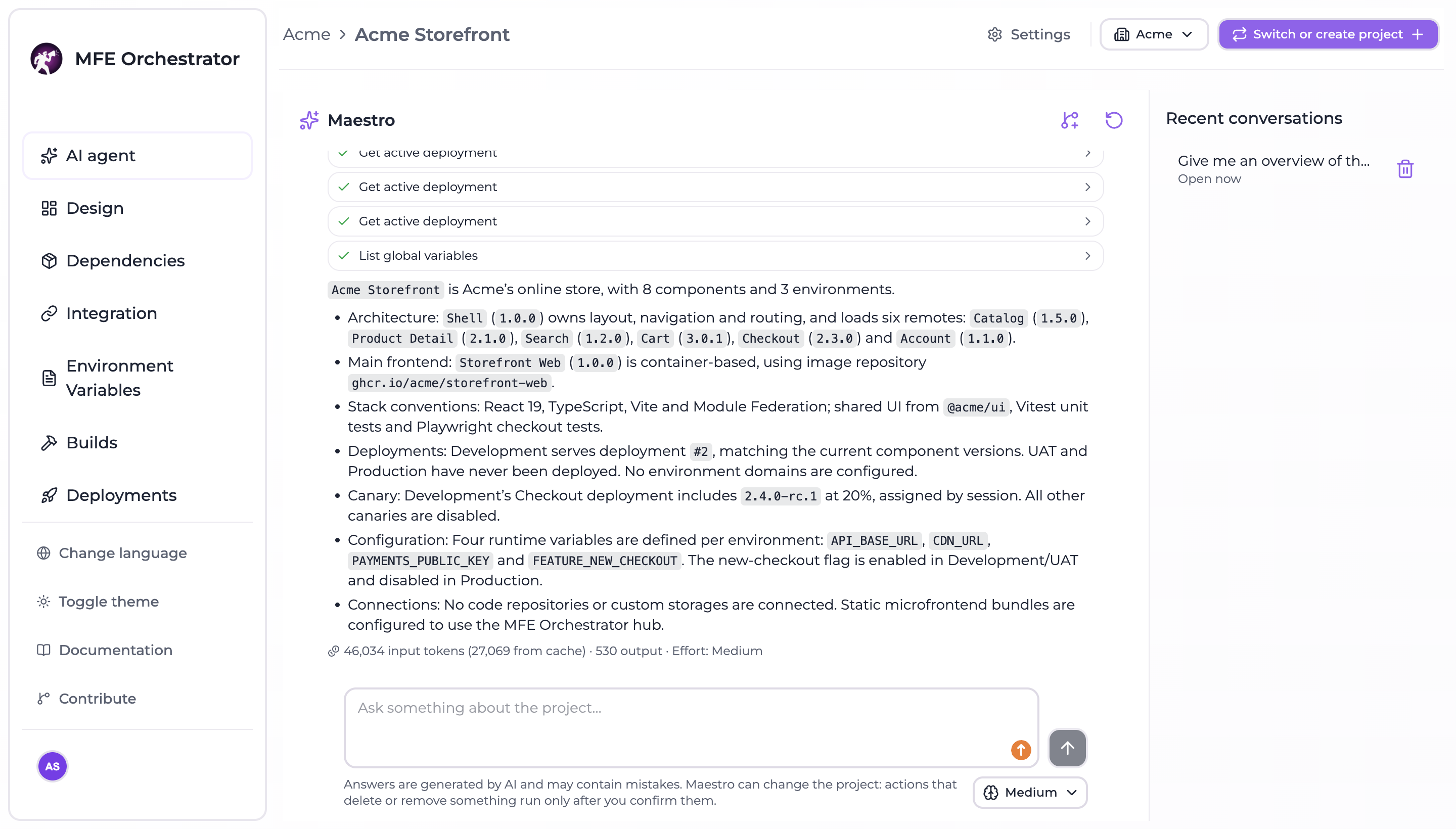
Maestro is the assistant of the console. It looks up and changes the microfrontends, builds, deployments, environments and variables of the project you have open, and searches this documentation. Open it with Open Maestro or with ⌘J / Ctrl+J, on any page of a project.
It acts as you: with your role in the project, on the project open in the console and never on another. A viewer can ask anything, but every change it asks for is refused.
Ask
Type in the box and press Send. While the answer is on its way you can Stop it. Above the box you pick the AI and the reasoning effort. With Claude, its reasoning streams under Reasoning above the answer.
Some pages offer a ready-made question:
| Page | Action | What Maestro does |
|---|---|---|
| Builds | Explain the failure | Reads the logs of the failed jobs and explains the cause |
| Deployments | Analyze the latest deployment | Compares it with the previous one: which versions and variables changed |
| Dependencies | Analyze the conflicts | Tells which shared dependency conflicts are risky and which to tackle first |
| Environment variables | Check the variables | Looks for variables defined in one environment and missing from another |
Build logs are redacted before they reach the model: tokens of the known formats, credentials in URLs,
password= and token: assignments, variables named like *SECRET*, *KEY* or *TOKEN*, private
keys and Azure signatures are blanked.
Changes and confirmations
Maestro runs ordinary changes directly: creating a microfrontend, editing an environment, setting a variable. It stops and asks you first for every action that is destructive (deleting, deploying, rolling back, committing to a repository) and for those that hand out access or cannot be undone (invitations, new API keys, canary users, discarding an AI change).
The panel then shows a Confirm this action card. It names what the action acts on, with names instead of ids: users, environments, microfrontends with their version and host, API keys, AI changes with their request and files. A deploy card says, per environment, which microfrontend versions, hosts and variables change compared to the active deployment. The raw input Maestro sent is one click away.
- The action runs only after Confirm. Cancel tells Maestro you declined, and it carries on.
- A card can be answered once and expires after 15 minutes.
- While a card is waiting, the box waits too: confirm or cancel first.
Some things stay in the console pages on purpose, because their input or output is a secret that would travel to the AI provider: storages, repository connections, your profile and bundle uploads. A new API key created through Maestro is shown in the panel only, never sent to the model.
Conversations
Every conversation is saved on the server, per user and per project, with secrets masked, so it survives a reload. Recent conversations lists them to reopen one and go on; New conversation starts over. Deleting a conversation removes it from the list.
AI agent page
The AI agent page, the first entry of the sidebar, opens Maestro full screen. Next to the Project conversation it keeps a tab for each AI job: New AI job starts one agent on several microfrontends together, at most 10 repositories, so a single change can span the host and the remotes that use it. Each repository gets its own proposal on its own feature branch, which you review, refine in the conversation and apply together with Apply all. The rules are those of Edit with AI, whose queue keeps the Applied and Failed requests in groups of their own. While an agent works on a microfrontend, the Design page shows it on its card with a pulsing agent at work badge, so you see at a glance which microfrontends are being changed. A job that is still running cannot be applied, and a project runs a limited number of jobs at a time: wait for one to finish.
Tokens
Under every answer Maestro shows the tokens it used, every model step summed: the input, the part read from the prompt cache (which costs far less), and the output. The server also logs each answer with the user, the project, the AI and the counts, and logs every change Maestro runs, confirmed or refused, with the arguments reduced to ids and short values, never free text or secrets.
Limits
ASSISTANT_RATE_LIMIT_MAXquestions per minute (20 by default): beyond it Maestro asks you to wait a minute.- With no AI available to the project Maestro is hidden.
Answers are generated by AI and may contain mistakes: read the confirmation card before you confirm.